
Blackboard Learn Ultra Integration (Private Beta)
Install and verify AutoMark for Blackboard Learn Ultra with guided support from the AutoMark team.
AutoMark connects to Blackboard Learn Ultra through LTI 1.3 and Blackboard's REST APIs. Instructors can launch AutoMark from a course, import assignments and student submissions, review rubric-based grades and feedback, and return approved results to Blackboard.
Evaluating AutoMark for your school? See AutoMark for Blackboard for how it works, student data protections, and pilots.
Guided private beta: Complete these steps with the AutoMark team during onboarding. We will verify the first course and grade return with you before the institution expands access. Email support@automark.io to schedule setup.
Before you begin
Plan for approximately 15 minutes of administrator setup, followed by one end-to-end instructor test.
You will need:
- Blackboard Learn system-administrator access
- An Ultra course with an instructor, at least one test student, and a gradable written assignment
- AutoMark's Application ID:
d1068371-2096-4a66-864d-ede801d106ca - Your Blackboard Learn base URL, such as
https://learn.yourschool.edu
You do not need to create an application in Anthology's Developer Portal or share a Blackboard password, API key, or client secret with AutoMark.
Part 1: Register the LTI tool
Step 1: Open LTI Tool Providers
Sign in to Blackboard Learn as a system administrator. Open the Administrator Panel, then go to Integrations → LTI Tool Providers.
Step 2: Register AutoMark
Select Register LTI 1.3/Advantage Tool, enter the AutoMark Application ID below, and select Submit.
d1068371-2096-4a66-864d-ede801d106ca
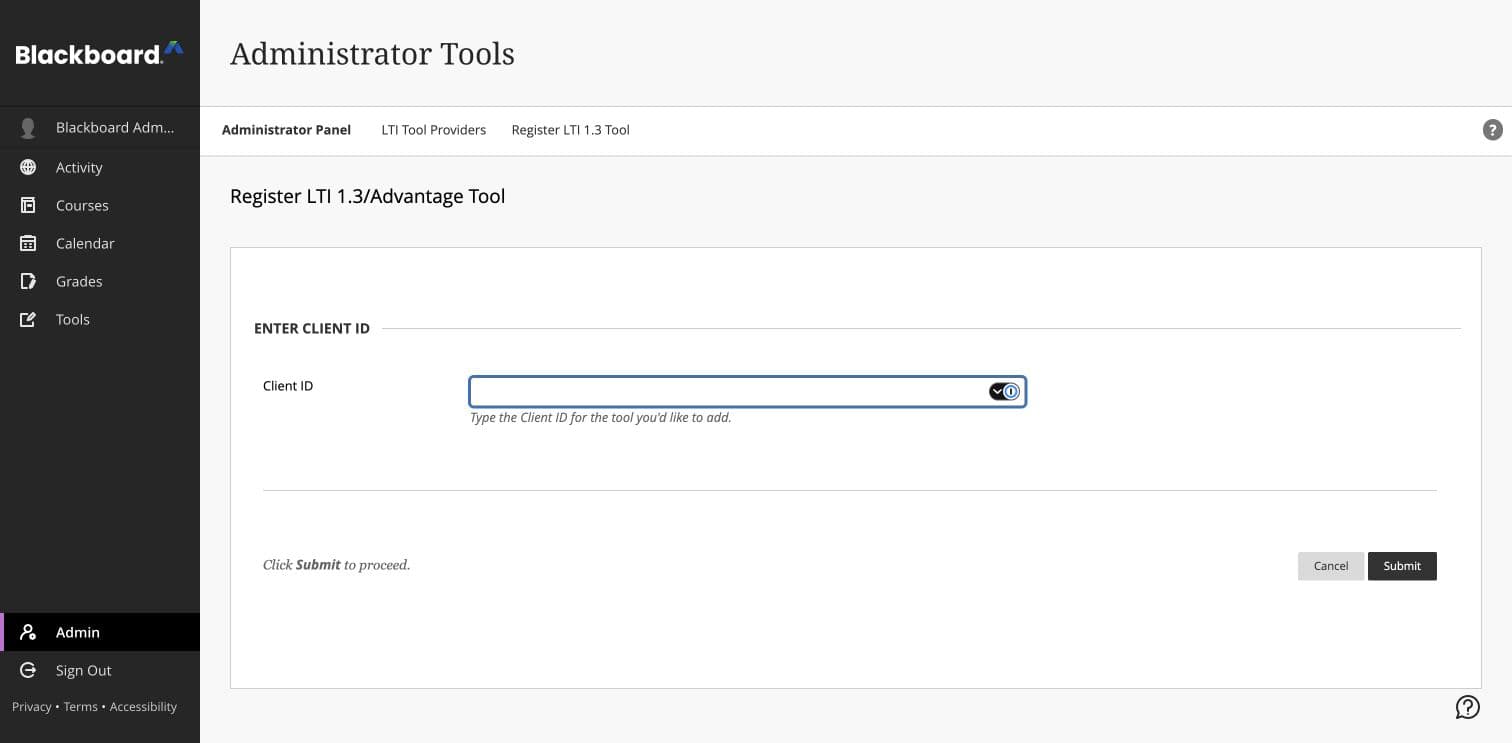
Blackboard retrieves AutoMark's registration and security settings from the centrally managed application.
Step 3: Review and approve access
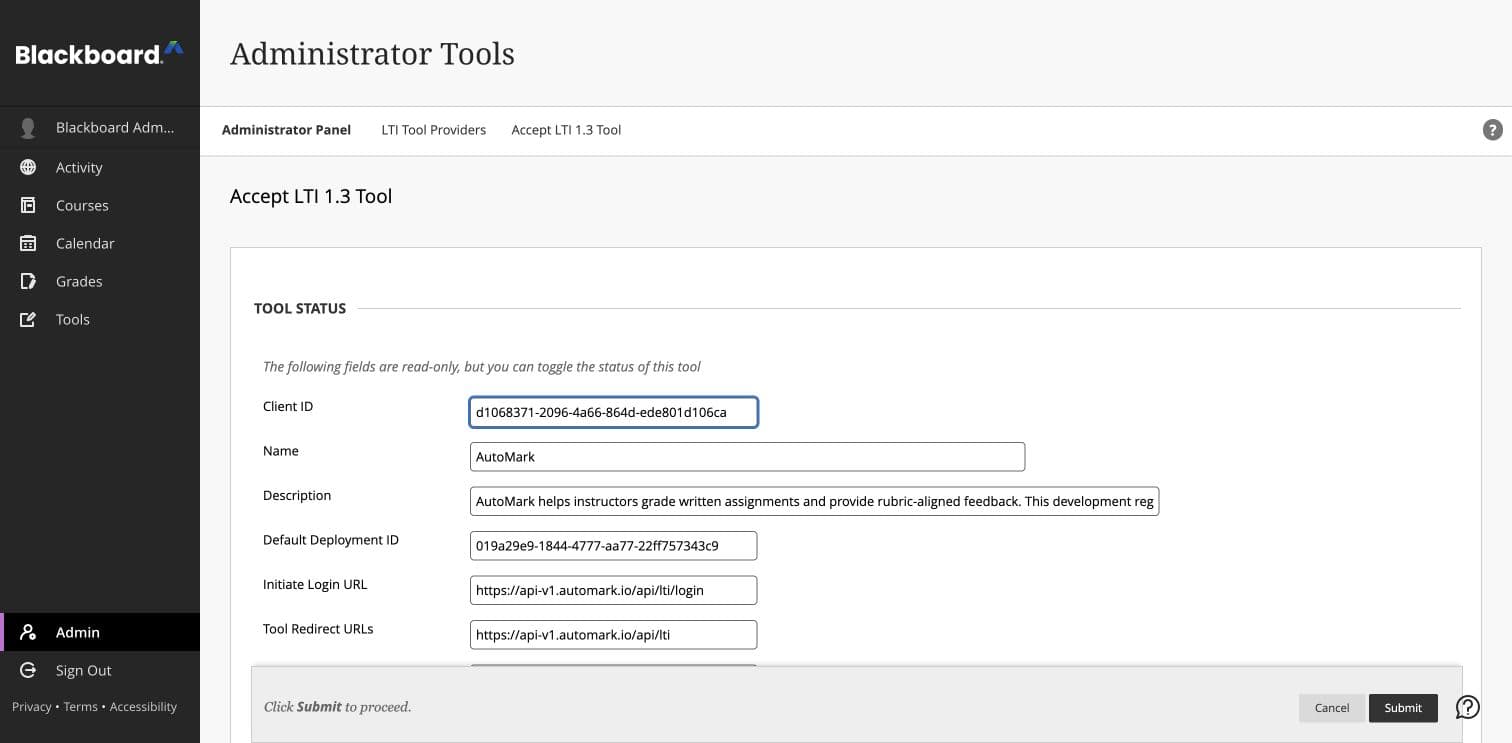
On the registration screen, set Tool Status to Approved. Allow Blackboard to send the information required for the instructor workflow:
- Role in course
- Name
- Email address
- Course and user identifiers
- Names and Roles Provisioning Services
- Assignment and Grade Services
Select Submit to save the tool.
Step 4: Confirm the course placement
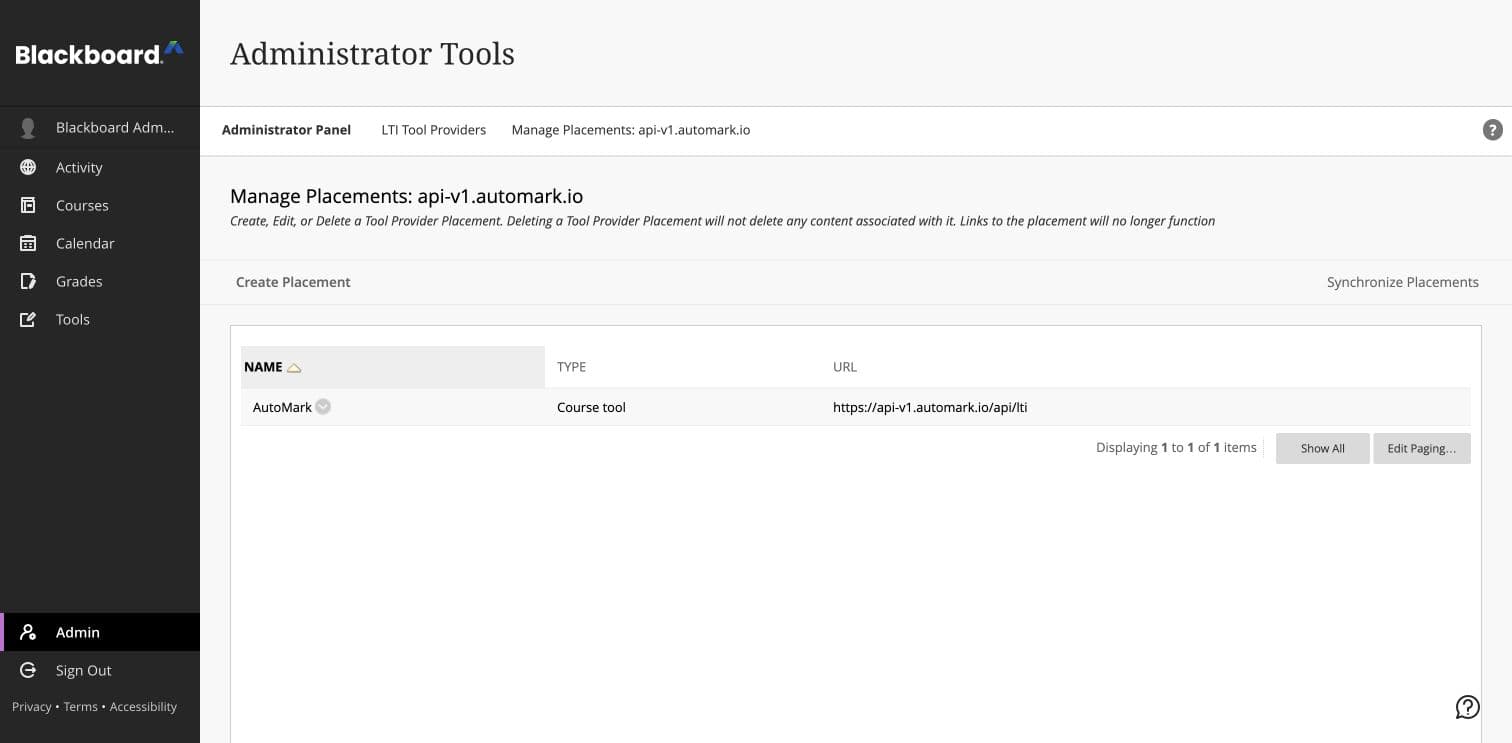
Find AutoMark on the LTI Tool Providers page and open Manage Placements. Confirm there is one available Course tool placement with this target link URL:
https://api-v1.automark.io/api/lti
Do not create a second placement if AutoMark is already listed. Instructors will open this placement from Books & Tools inside an Ultra course.
Part 2: Enable Blackboard REST access
AutoMark uses Blackboard's REST APIs to retrieve assignments and submissions and to attach approved feedback. The REST integration uses the same centrally registered Application ID.
Step 5: Open REST API Integrations
Return to the Administrator Panel, then go to Integrations → REST API Integrations and select Create Integration.
Step 6: Create the AutoMark REST integration
Configure the integration with:
- Application ID:
d1068371-2096-4a66-864d-ede801d106ca - Learn User: a dedicated service account with access to the pilot courses
- End User Access: Yes
- Authorized To Act As User: Service Default (No)
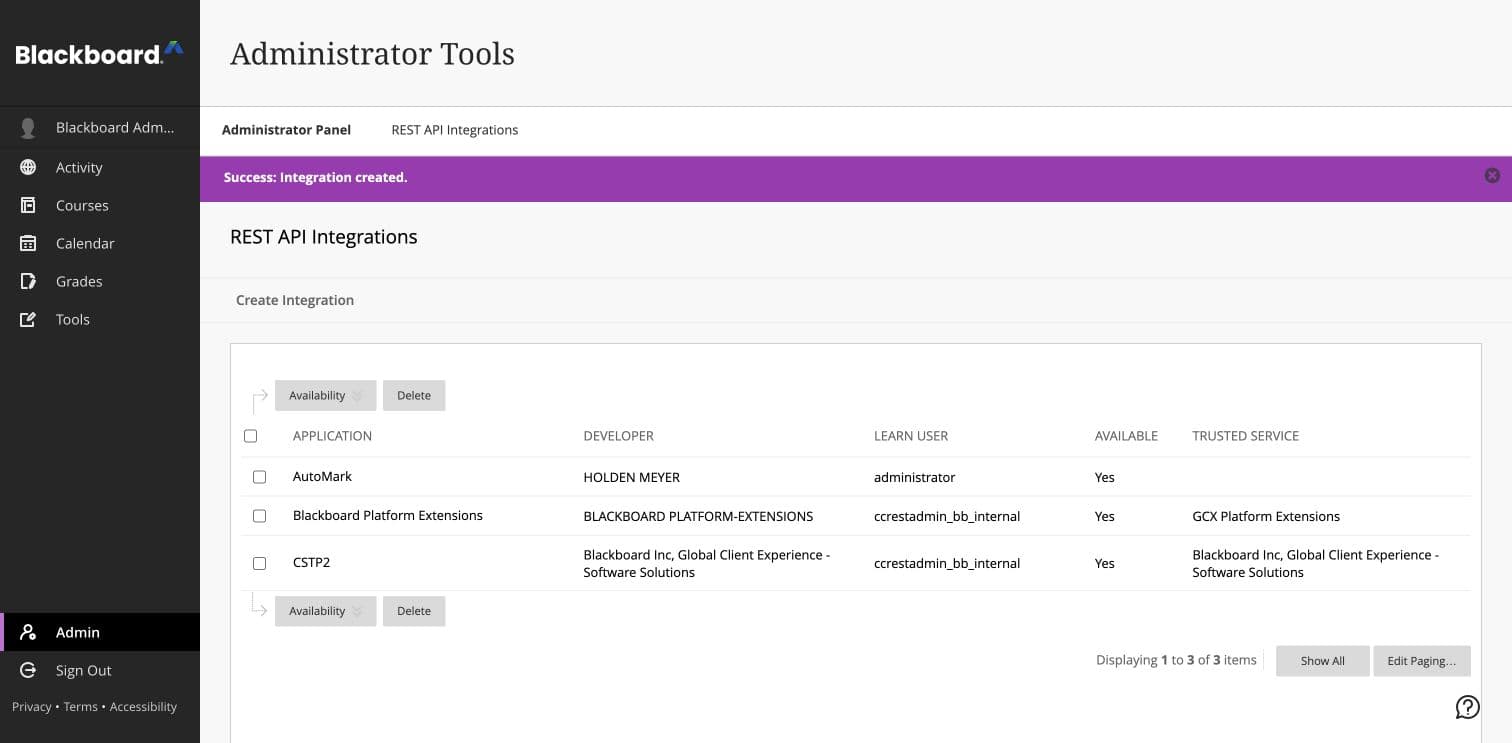
Select Submit, then confirm AutoMark appears as Available.
Security: Do not send AutoMark the service account password or any Blackboard API secret. Blackboard authorizes AutoMark through the centrally registered application.
Step 7: Share the pilot details
Send support@automark.io the institution name, Blackboard base URL, and pilot-course name. AutoMark normally discovers the Blackboard hostname and creates the institution connection on the first instructor launch; these details let our team monitor and verify the guided beta.
Part 3: Verify the instructor workflow
Step 8: Launch AutoMark from an Ultra course
Open the pilot course as an enrolled instructor. Go to Books & Tools, then select AutoMark.
The first launch connects the Blackboard course and creates the instructor's AutoMark account. No separate AutoMark password is required.
Step 9: Import an assignment and add its rubric
In AutoMark, refresh the Blackboard assignments, select the written assignment, and import its available submissions. Confirm that the assignment title, point value, roster, and submissions are correct.
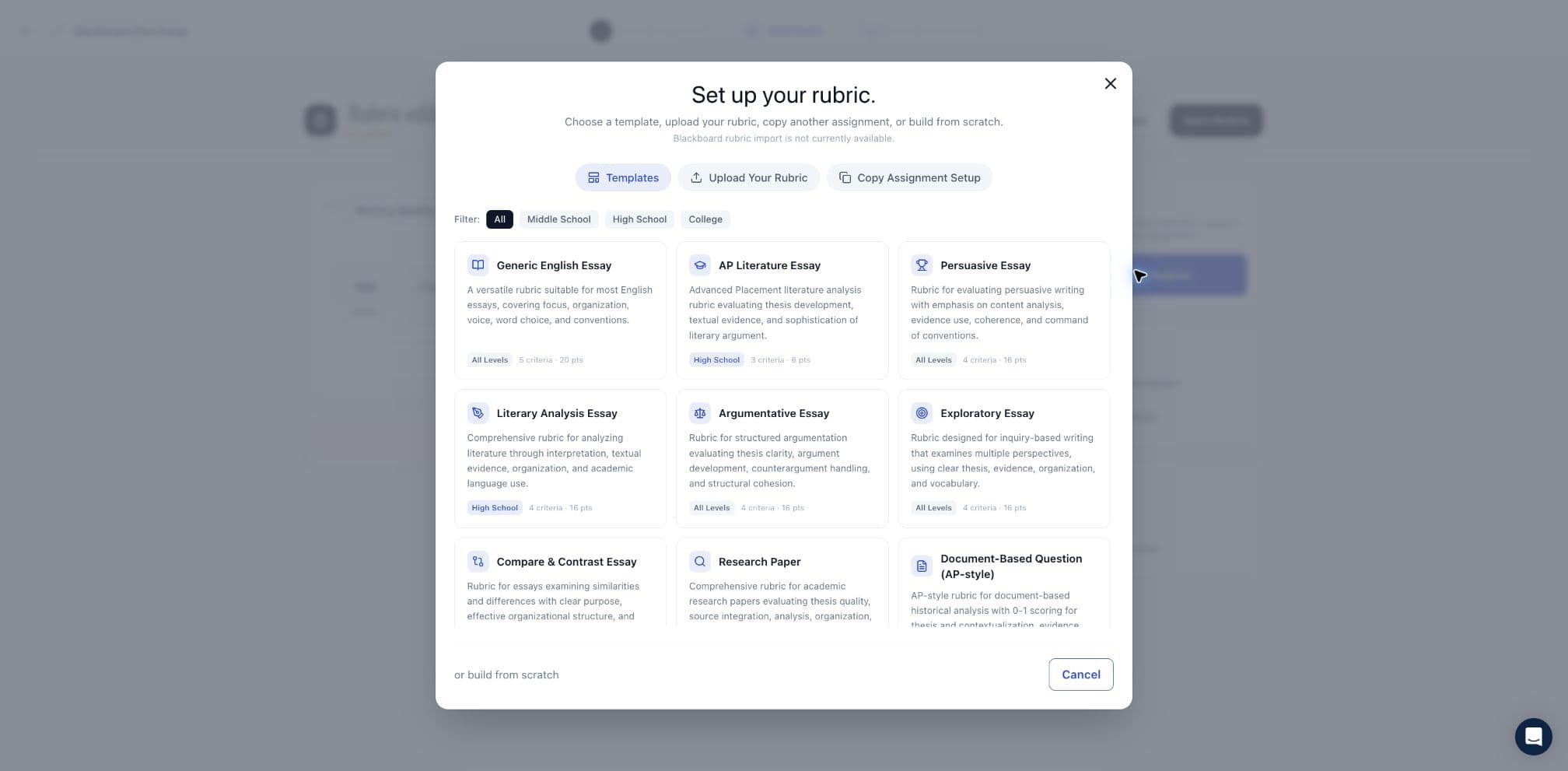
Add a rubric using an AutoMark template, paste its text, or upload a rubric file. Native Blackboard rubric import is not currently available.
Step 10: Grade one test submission
Grade one student submission. Review the suggested rubric scores, inline comments, and overall feedback, then approve the result.
Use a test student for this first verification. Do not send a live student's grade until the complete round trip has passed.
Step 11: Return the approved result
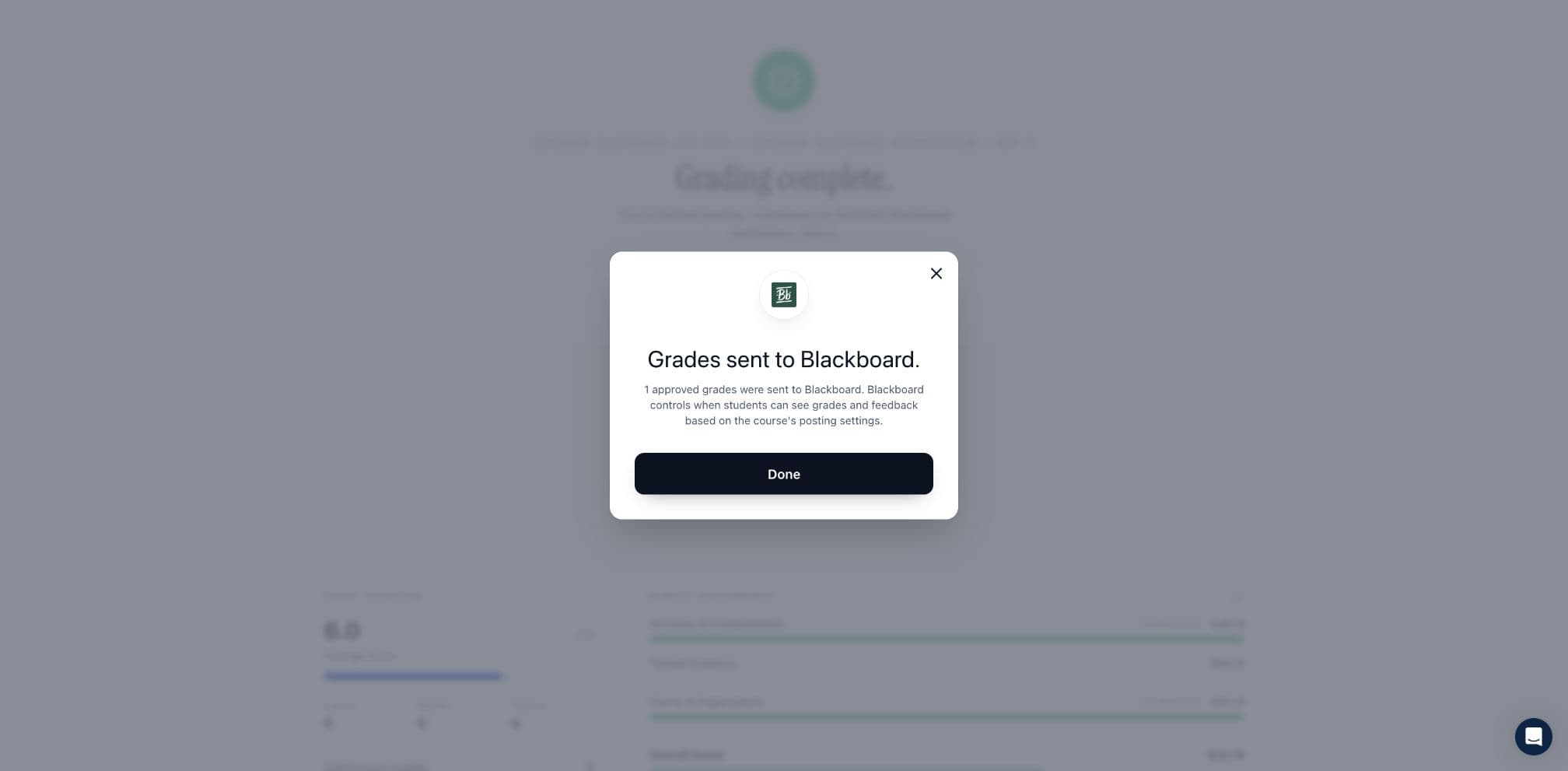
Send the approved grade and feedback to Blackboard. AutoMark will confirm the completed passback.
Step 12: Verify the result in Blackboard
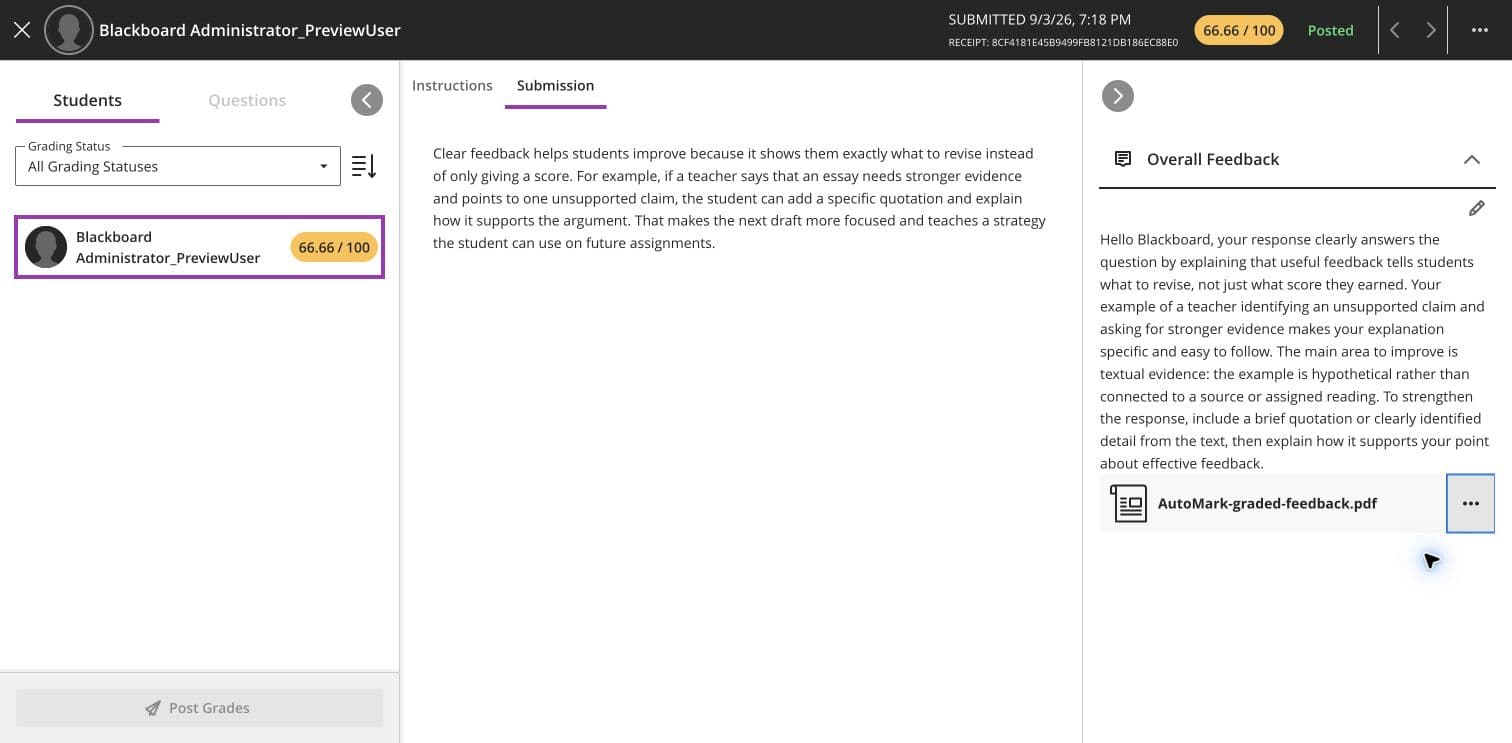
Open the student's attempt in Blackboard and verify:
- The score is correct and scaled to the Blackboard assignment's point value
- The attempt is posted
- The approved overall feedback is present
AutoMark-graded-feedback.pdfis attached when PDF feedback was selected
Once this test succeeds, AutoMark will confirm the pilot is ready for additional instructors and courses.
Troubleshooting
AutoMark does not appear in Books & Tools: Confirm the AutoMark placement is available and LTI is enabled globally, for the tool, and for the course. Do not create a duplicate placement unless AutoMark support asks you to.
The tool says it is disabled: Confirm AutoMark's LTI tool status is Approved and the course allows LTI tools.
The launch fails: Confirm the person launching AutoMark is enrolled in that course with an instructor or administrator role, then launch AutoMark again from the affected course.
The course, roster, assignments, or submissions are missing: Confirm the REST integration is available, the selected Learn User can access the pilot course, and End User Access is set to Yes. Then relaunch AutoMark and refresh the affected data.
A grade or PDF does not appear in Blackboard: Confirm the assignment has a Blackboard gradebook column, the instructor launched AutoMark from the same course, and the test student's enrollment is active. Retry only the affected result.
Need help?
Blackboard support during the private beta is guided directly by the AutoMark team. Email support@automark.io and include the institution, course, assignment, and approximate time of the issue.