

You’ve finished reviewing a set of papers. You know each student’s score. Now comes the question that matters for tomorrow’s class: what should we work on next?
Class Insights brings that next decision into AutoMark. Start with an assignment summary, open the student work behind a finding, and carry that understanding into a class view you can return to after the next assignment.
The update has three connected parts: a new assignment debrief, a permanent Insights tab, and transparent reporting on your review time.
The screenshots below show original synthetic student work and example review activity, not a real classroom or measured customer results.
Start with the assignment, not a wall of charts
Open View Summary from an assignment to see what the reviewed work tells you. The main takeaway comes first, followed by What went well, What to revisit, and a suggested teaching step.
For essays, select Analyze the work to add a closer reading of the responses. Each finding connects to a rubric criterion and includes a passage from the work or feedback. If there are additional patterns, you can expand them without losing the main teaching priority.
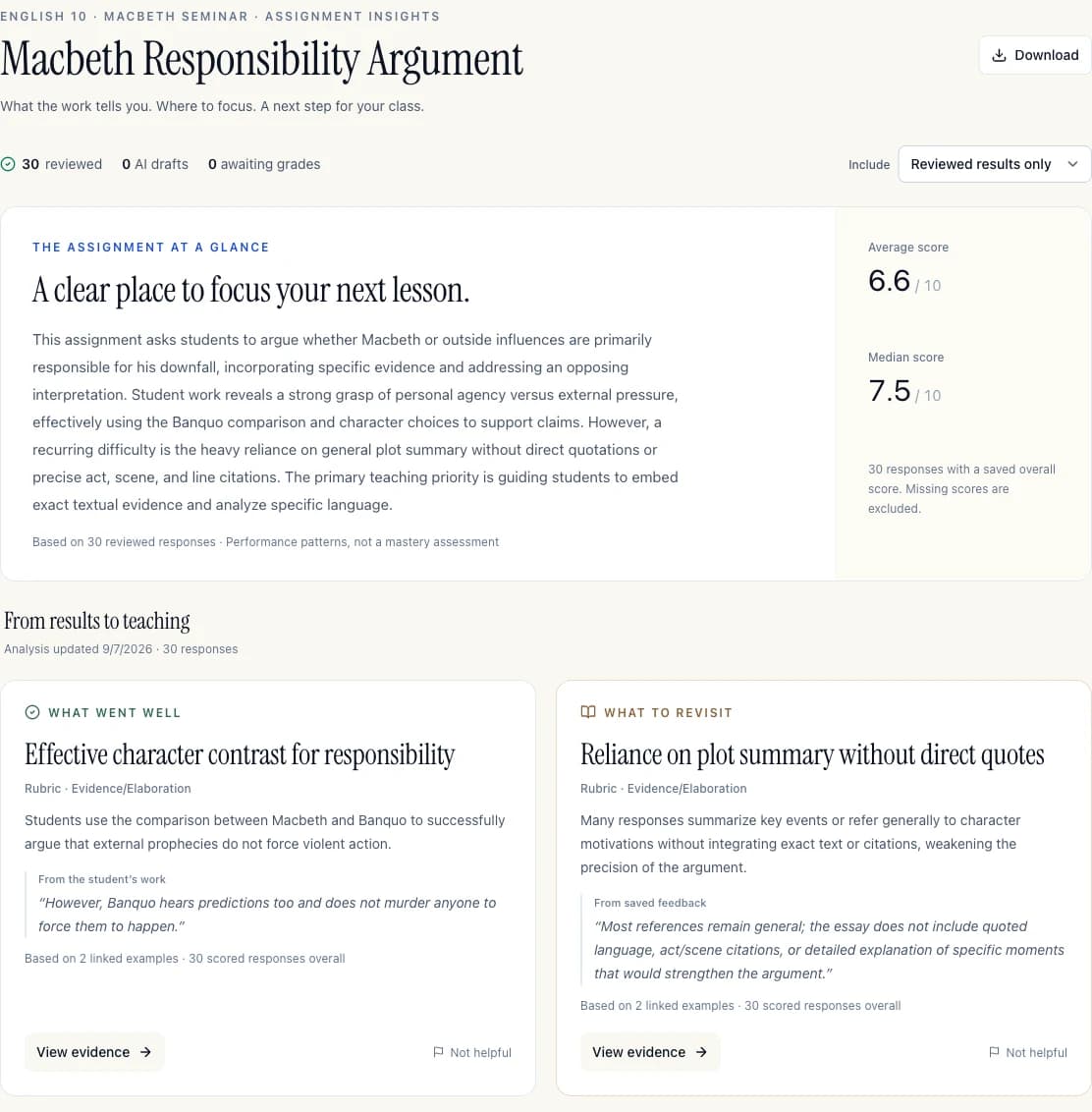
An assignment debrief brings the main teaching decision above the detailed score breakdown.
For example, a class may be able to state an argument but need more practice explaining why a piece of evidence supports it. That distinction gives you somewhere specific to begin: model the missing reasoning, compare examples, or ask students to revise a short passage.
The overall average and median remain available. Criterion distributions show the actual scores and the number of responses included. Missing grades are excluded, and a genuine zero is still counted.
Open the work behind a finding
A summary is more useful when you can check it. Select View evidence to see the linked responses, their criterion scores and feedback. Open a response to review the full work before deciding what to do next.
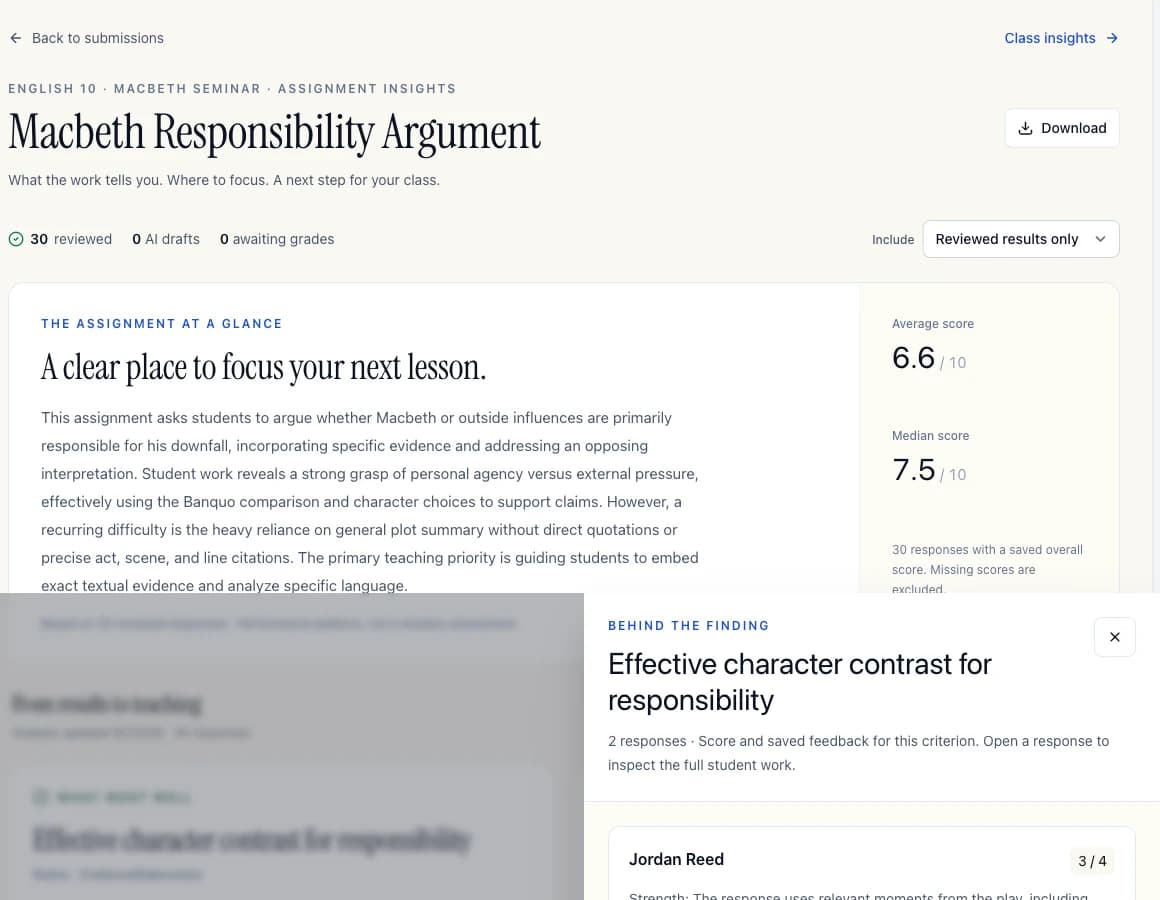
Move from a class-level observation to the responses that support it.
The suggested teaching step also includes Choose examples and Copy teaching note. You choose which work to use and how to adapt the suggestion for your students. If a finding is unhelpful, you can flag it.
Reviewed results are the default. To look ahead at work you haven’t reviewed, switch to Reviewed + AI drafts; the summary is clearly labeled as a preview. If the underlying work, scores, feedback or assignment instructions change, AutoMark marks the analysis for refresh. Your score summary remains available while a new analysis runs or if a request fails.
Keep a class picture across assignments
Select Insights in the main sidebar to open the current class’s workspace. Choose a period, see the assignments and students represented, and explore strengths and areas that may benefit from follow-up.
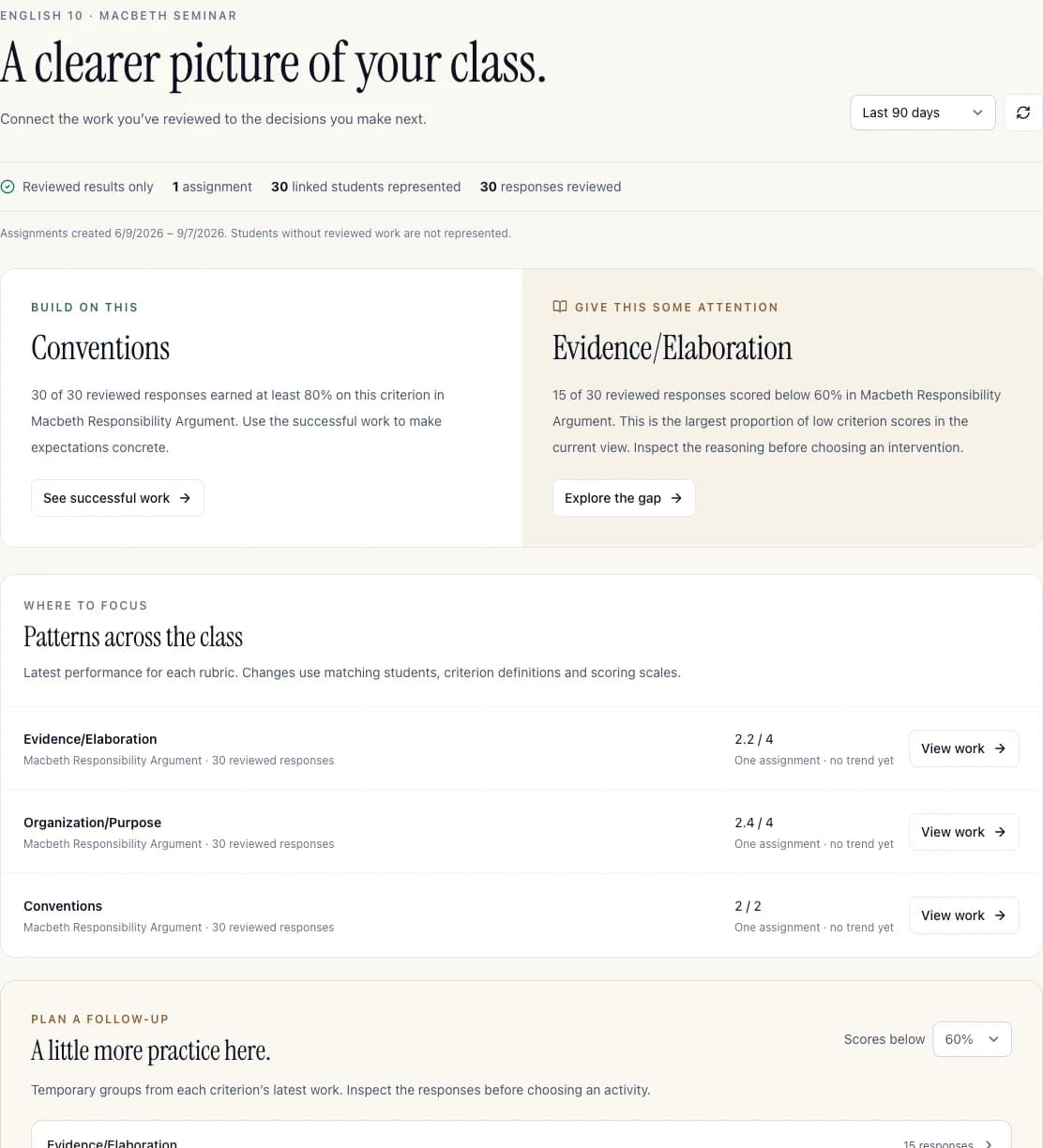
The class view keeps the course, period and evidence coverage visible.
The class view helps you:
- See where to focus. Inspect rubric patterns and the work contributing to them.
- Choose a follow-up group. Select a criterion and a visible score threshold, then review the relevant responses. These are temporary groups for a teaching decision.
- Return to earlier work. Open assignment summaries from the class history.
- Read supported comparisons. Changes appear only when the rubric definitions and scoring scales match and enough of the same roster-linked students have comparable results.
One assignment is enough to start using the page. AutoMark does not manufacture a trend from it or treat scores from unrelated assignments as proof of improvement.
Understand your review time
Near the bottom of Insights, you’ll find responses reviewed, recorded active review time and timing coverage.
To see an estimate of time saved, enter how many minutes you would normally spend reviewing a response manually. You can set separate baselines for different assignment types. AutoMark compares that baseline with recorded activity for the same responses with usable timing data.
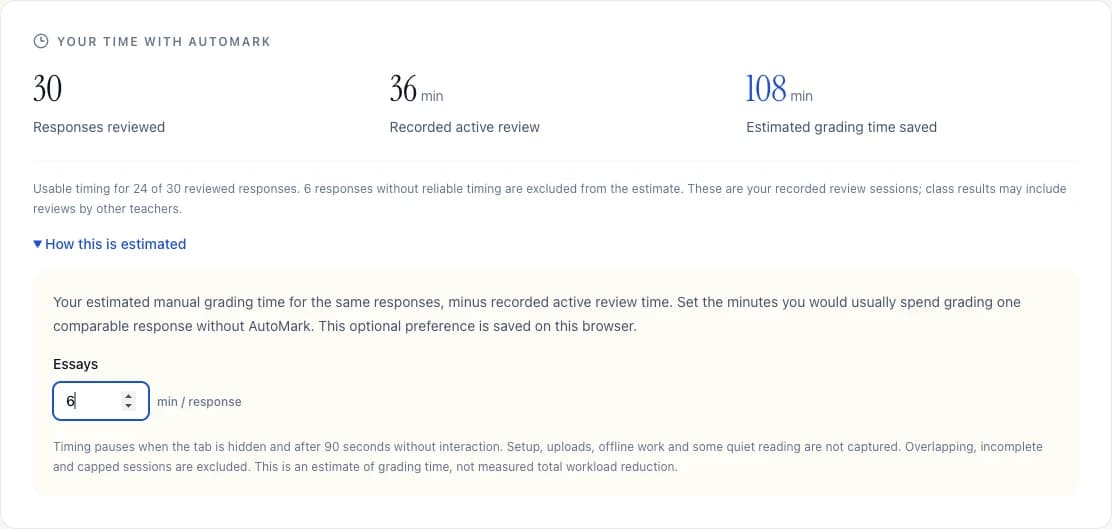
Example activity and a teacher-entered baseline illustrate the calculation; they are not a promise of savings.
There is no assumed savings number. Missing or unreliable timing is excluded, and the estimate can show that you spent more time than your baseline. Active review tracking also does not capture every part of teaching, including setup, offline work or reading without interaction. The calculation and its coverage are available alongside the estimate.
Try it with your next assignment
- Review your students’ responses as usual.
- Open View Summary and, for an essay, select Analyze the work.
- Open the evidence behind a useful finding and choose a teaching step.
- Return to Insights after another assignment to build your class picture.
The deeper written analysis starts with essays. Math and short-answer assignments have factual question-level summaries; essay-style interpretation is not applied to those responses. Grade approval, export and LMS return remain under your control.
Open AutoMark and explore your class insights →
We’d like to hear what the report helped you notice and what you chose to teach next. Share your feedback with us.